Install Claude Desktop
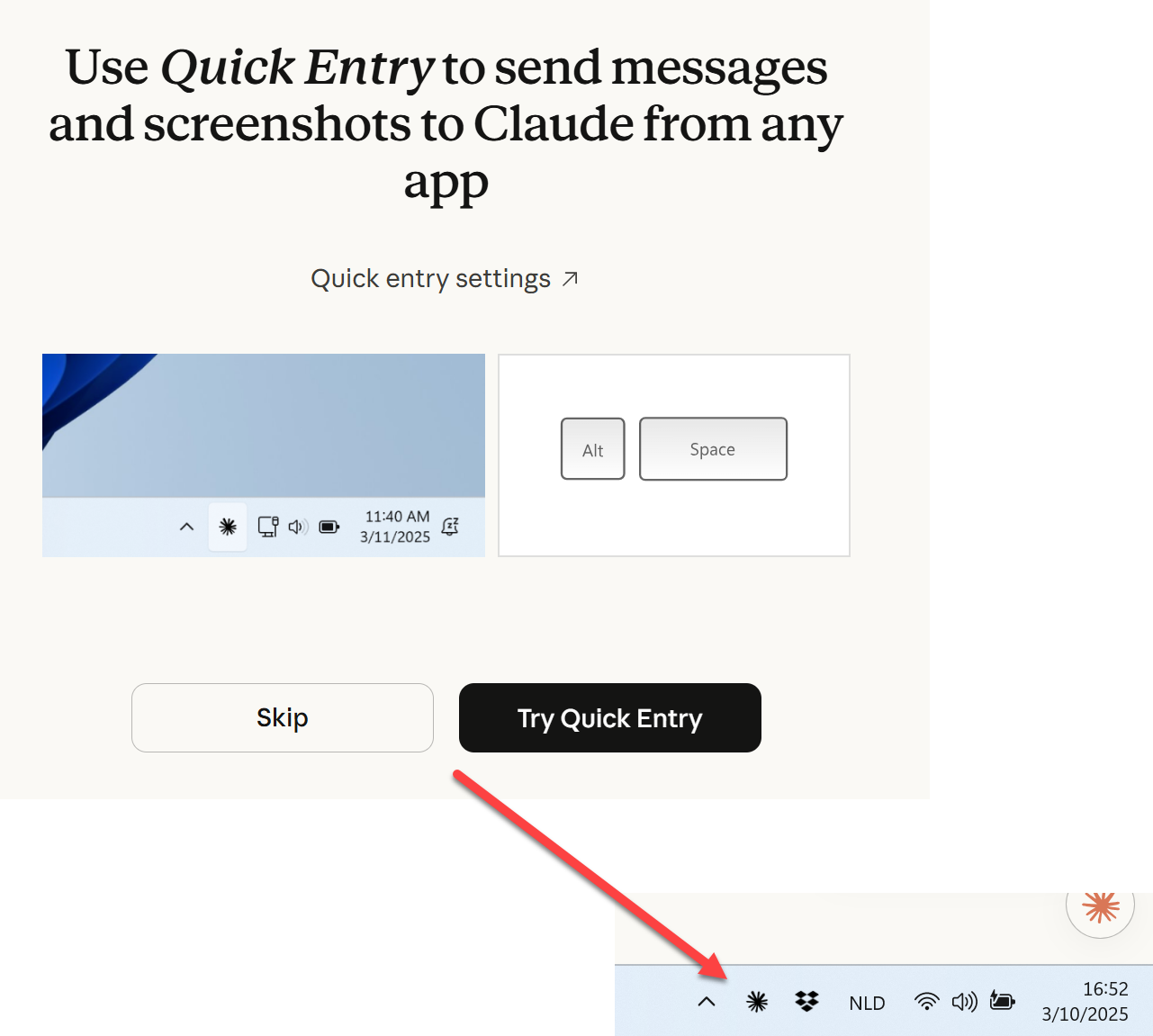
From here
You can add it to the tray to ask quick questions
Add the MCP server
The MCP code is here
Install UV package manager
This is required, but also usefull as it is more performant than pip.
Open powershell in administrator mode and run
powershell -ExecutionPolicy ByPass -c "irm https://astral.sh/uv/install.ps1 | iex"
Add to the path
$env:Path = "C:\Users\LucWens\.local\bin;$env:Path"
Add Blender MCP to Claude
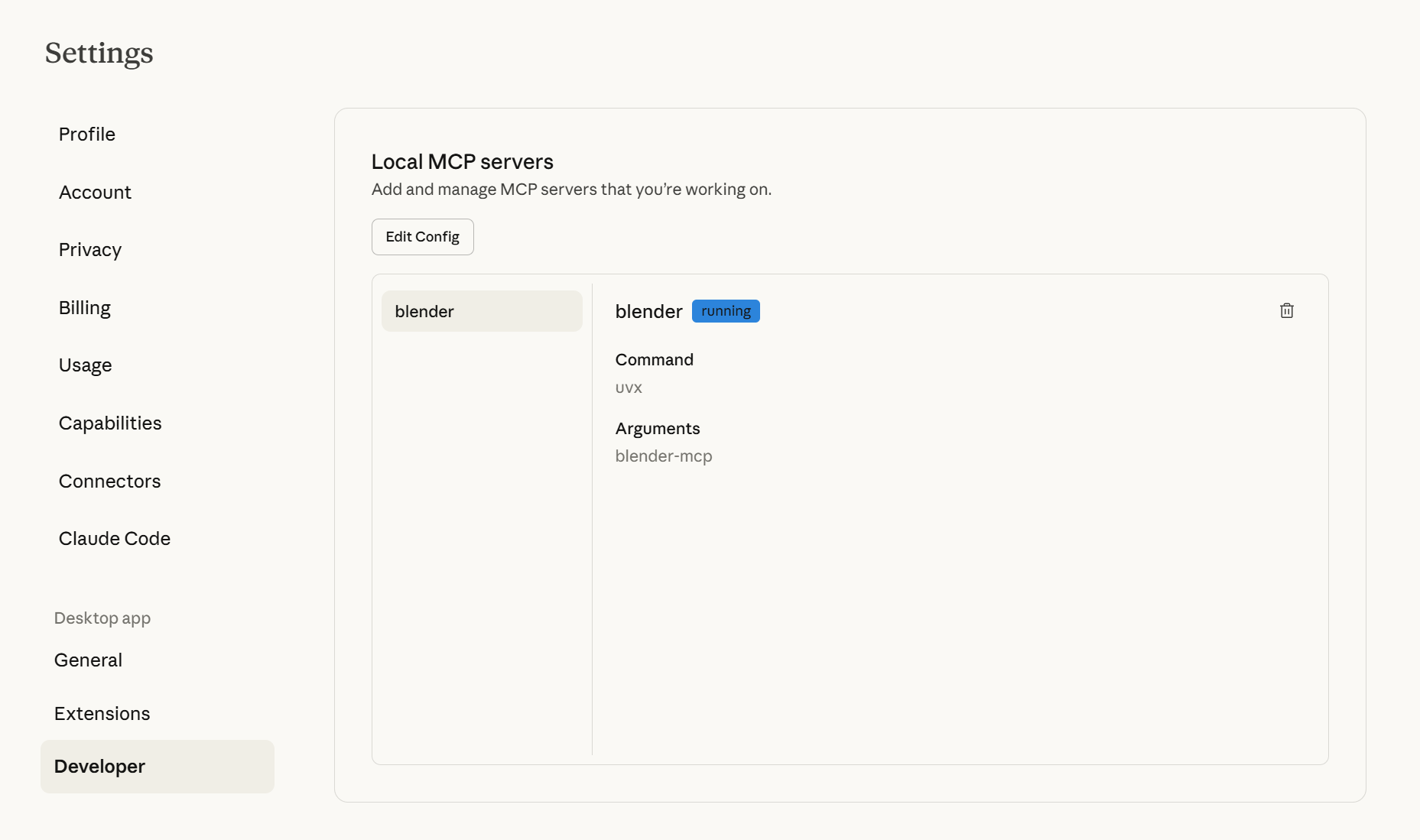
Go to Claude > Settings > Developer > Edit Config > claude_desktop_config.json and add the following:
{ "mcpServers": { "blender": { "command": "uvx", "args": [ "blender-mcp" ] } } }
OR
if it does not exist yet, save this file into C:\Users\LucWens\AppData\Roaming\Claude
Check that it is running
Blender Add On
Follow instructions from here
https://github.com/ahujasid/blender-mcp
Download the addon
- Download the addon.py
- Open Blender
- Go to Edit > Preferences > Add-ons
- Click "Install..." and select the addon.py file
- Enable the addon by checking the box next to "Interface: Blender MCP"
Usage
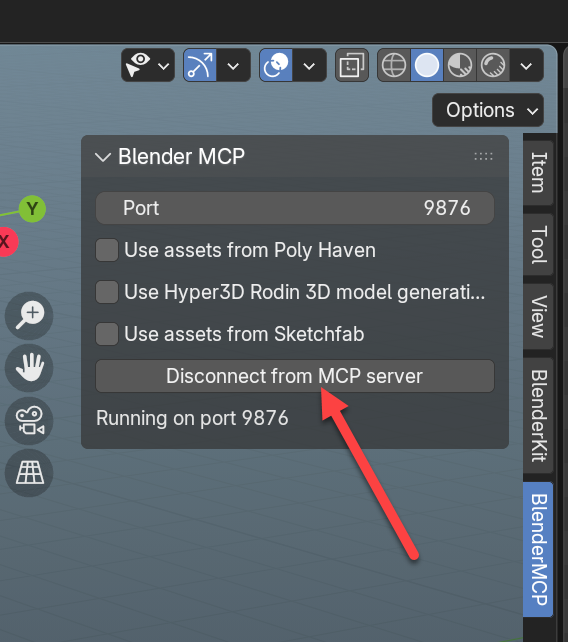
Side panel in Blender, make sure claude is running in the background