Installing the software
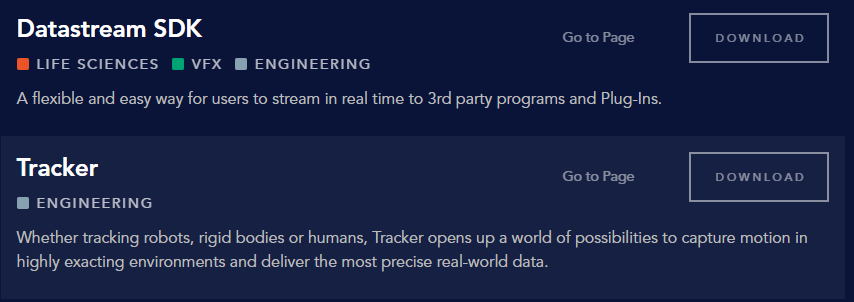
Sure, the SDK can be downloaded freely from:
https://www.vicon.com/downloads/
It’s the Datastream SDK you need to download, which installs to:C:\Program Files\Vicon\DataStream SDK
Under there, you’ll find the user manual as well as some example code for C++, .NET, Python and MATLAB.
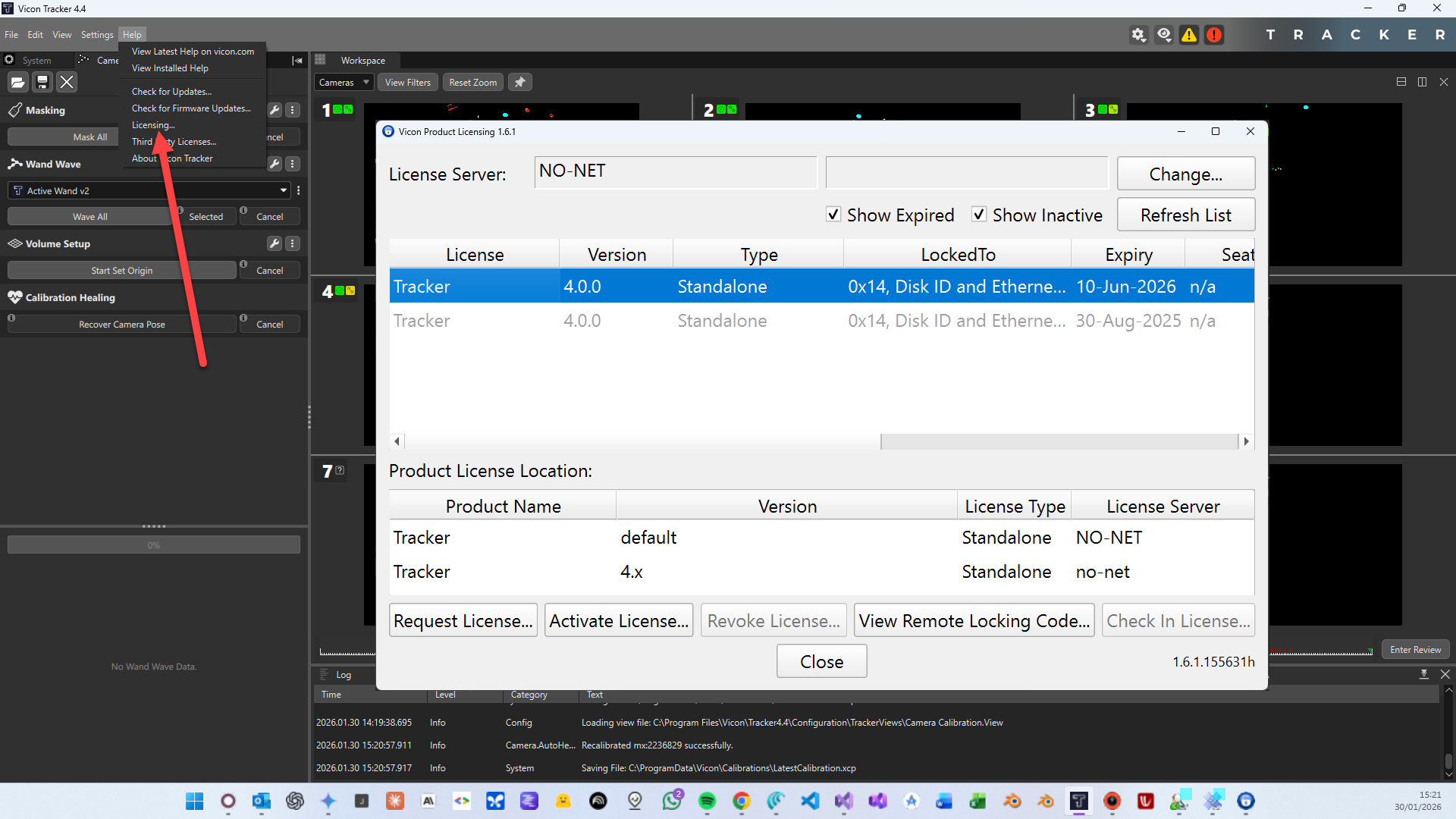
We do have a virtual system option that allows you to simulate real-time data without having installed cameras. This would require a trial licence for our Vicon Tracker software, which we could organise if you’d like to test an integration.
Meanwhile, I’ve personally used the SDK many times, so I could answer any questions you may have regarding integration.
Getting a license
Using the simulation
Current simulation files are under
- D:\Dropbox\C-Tech\Devices\Vicon\Simulation Data
- D:\Dropbox\C-Tech\Devices\Vicon\Testing
2 files are required:
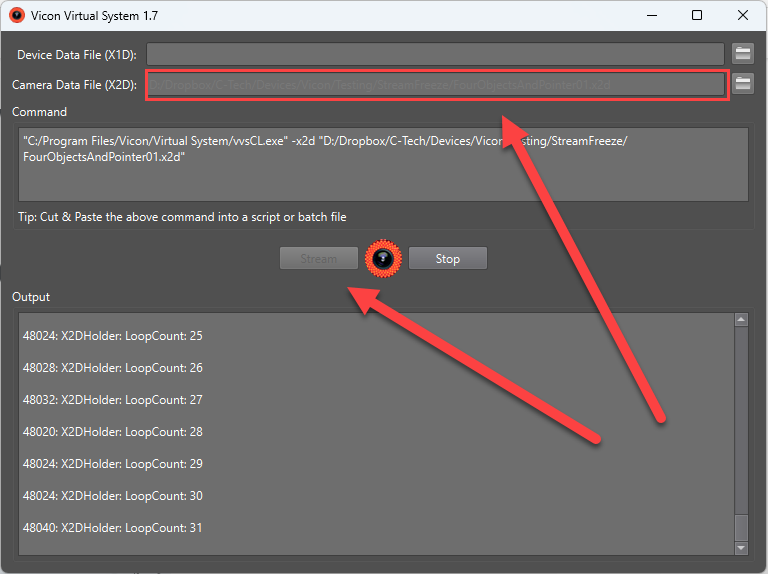
- .x2d : the actual simulation
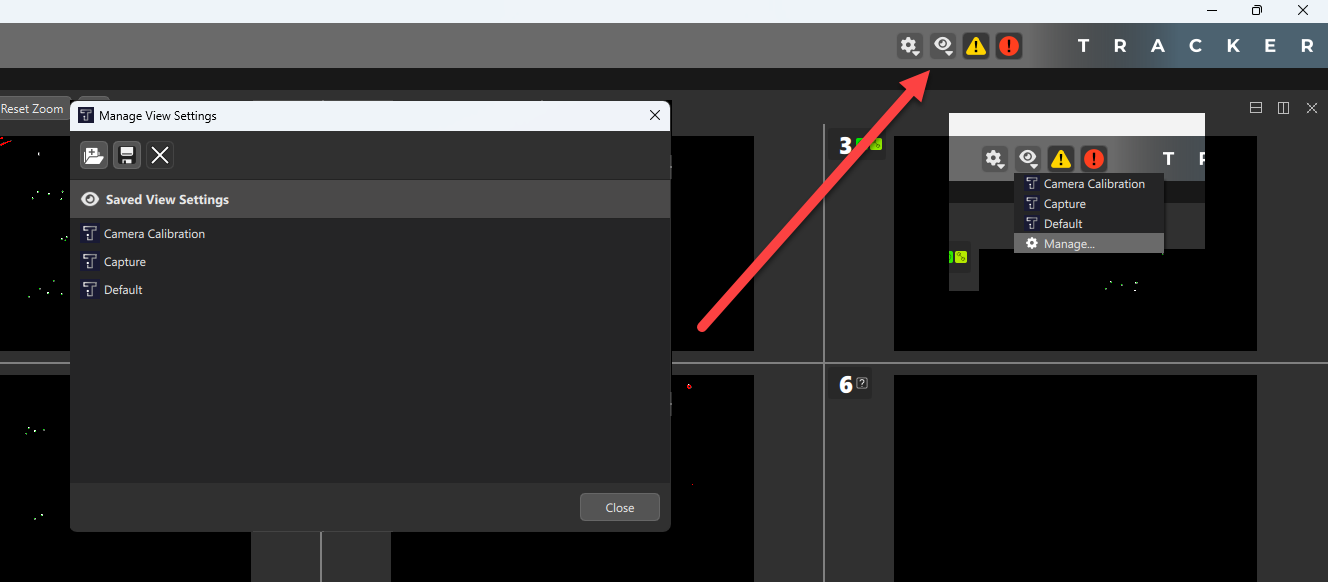
- .mcp : the camera calibration
Setting the calibration
Starting the simulation
You need the Vicon Virtual System for this and specify the path to the Camera Data File and click Stream