
Pre-requisites
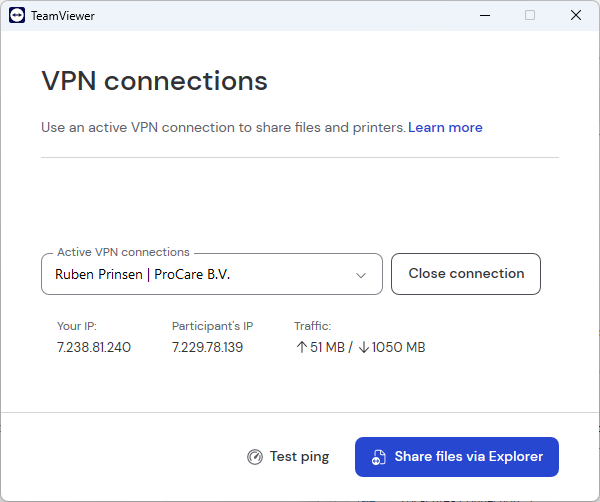
VPN on Teamviewer
Windows firewall must be off otherwise ping will fail
The Vicon driver already contains a stress test function which can be started with 'z' and stopped with 'y'
Test files are in : D:\Dropbox\C-Tech\Devices\Vicon\Testing
https://gemini.google.com/share/e0f9a8916dc1
Setting up wireshark
Once we can ping both systems, make sure to use the VPN IP address of the pc running the vicon system
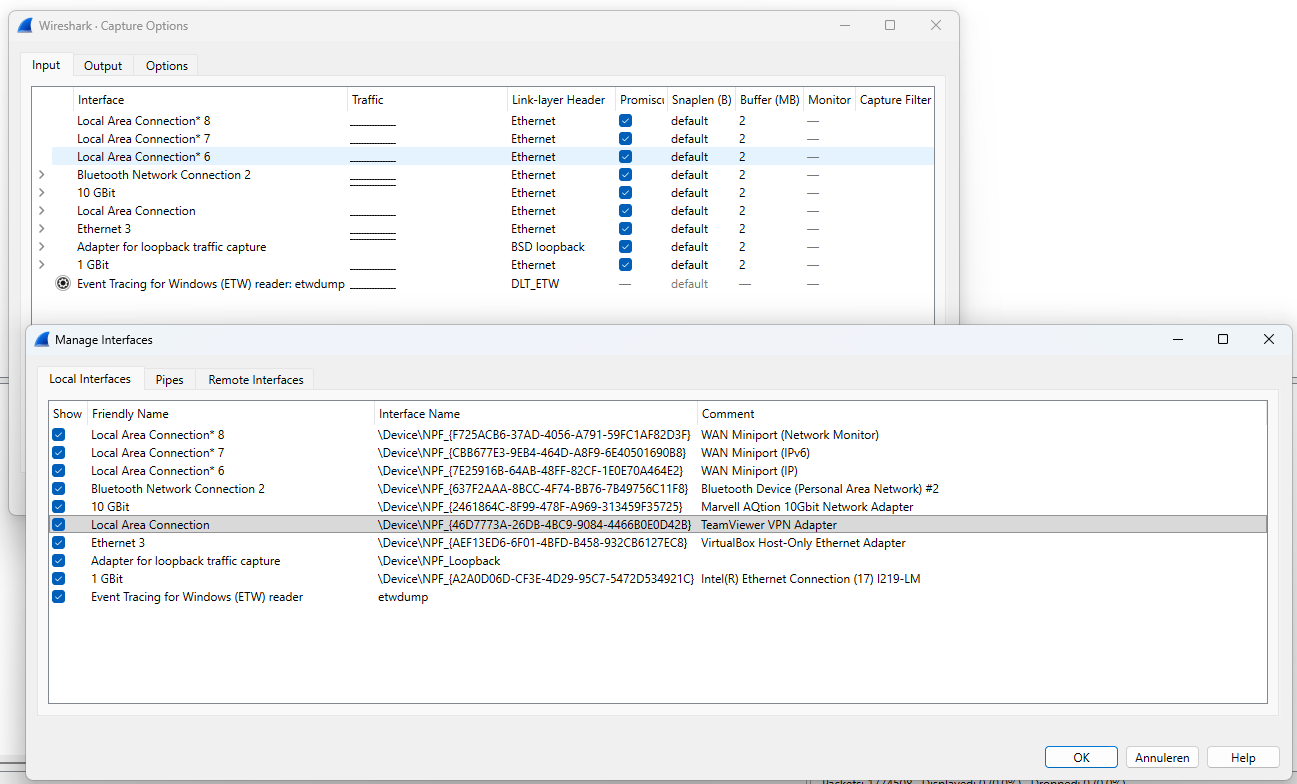
In Wireshark look for the adapter that states TeamViewer VPN Adapter
Filtering Wireshark to errors
To filter for errors and warnings in Wireshark, you generally use the Expert Information fields. Wireshark's dissectors automatically flag suspicious packets (like malformed data, checksum errors, or TCP retransmissions) and assign them a severity level.
Here are the two best ways to do this:
1. The Direct Display Filter
Type this into the filter bar at the top and press Enter. This will hide all "normal" packets and only show you the problematic ones.
Plaintext
_ws.expert.severity == "Error" or _ws.expert.severity == "Warning"
Error: usually Malformed packets or severe protocol violations (Red background).
Warning: usually Connection drops, TCP Retransmissions, or unusual application responses (Yellow background).
2. The "Expert Information" Window (Highly Recommended)
Instead of filtering the packet list line-by-line, it is often much easier to look at the Summary window. This groups all errors by type so you can see why they are happening.
Look at the bottom-left corner of the Wireshark window.
You will see a colored circle (Red, Yellow, or Blue).
Click that circle (or go to Analyze > Expert Information).
This opens a window that organizes every error and warning found in the capture. You can then click on a specific error (e.g., "TCP Retransmission") to see exactly which packets are involved.
Context for your VPN Setup
Since you are analyzing traffic between Program A and Program B:
Expect to see: Some "TCP Retransmission" or "TCP Duplicate ACK" warnings are normal if the VPN connection is under heavy load.
Watch out for: "TCP ZeroWindow" (Warning). This means one of your programs (A or B) is receiving data faster than it can process it, effectively telling the sender to "Stop!" This is a common cause of sluggish performance.
Conclusion
The testing did not reveal any significant problems, the driver kept on working.
There were a number of messages in the Vicon Tracker log window which will be send to Lasse Roren for feedback.